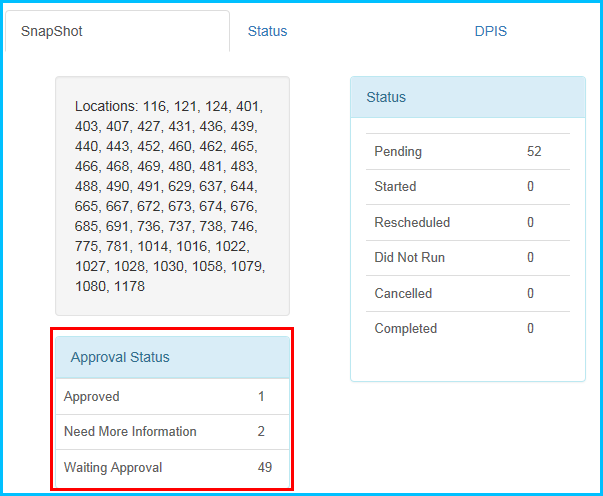
Calendar – View Event Requests 
To give you a more complete view of the upcoming Schedule, we have added Event Requests to the Calendar View in Buyer Portal. Event Requests are Requests that have been submitted either by Buyers or Vendors through their respective Portals that have not been finalized by the Daymon Sales & Scheduling Team yet. These Requests are Waiting Approval (for the most part, exceptions will be covered in a later section) and not actually on the Schedule yet. The Daymon Sales & Scheduling team may have to make updates to the Request (changing Dates and/or Locations) or have questions about the Request that must be resolved prior to the Request actually being Scheduled.
Calendar View – Finding Event Requests
To help identify Event Requests on the Calendar, they are color coded as Gray (to signify they are not complete yet). They may still be Regular, Combos, Splits, etc., but until they are Approved by the Daymon Sales & Scheduling Team, ALL Event Types will show as Gray.
To help find Event Requests on the Calendar, we have added three new filters:
- Approval Status – This indicates where the Events in the Event Request process are. Events can be Approved (ie on the Schedule and show normally as Regular, Combos, Splits, etc.), Waiting Approval (in the queue for the Daymon Sales & Scheduling to review), or Needs More Information (meaning the Daymon Sales & Scheduling Team have reviewed the Request, but have questions that have to be answered by the Vendor or Buyer before the Request can be Approved).
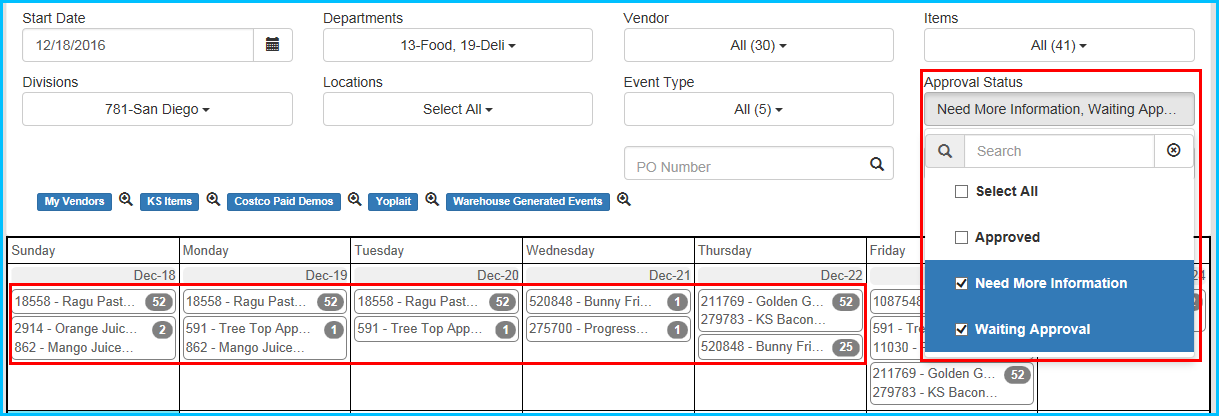
- PO Number – You can search by PO Number. This will show all Events within the Time Period and other filters that you have set with the PO Number. Like other text filters in the Calendar, results on the Calendar will update as you type. When I type in just MDB in the filter, I get ALL Events with a PO Number that starts with MDB. Please note that filtering by PO Number works for ALL Events not just Event Requests.

- Request Number – You can search by Request Number. This is the Tracking number the System emails to you when you Submit an Event Request through the Portal. This will show all Events within the Time Period and other filter that you have set with the Request Number.Please note that filtering by PO Number works for ALL Events not just Event Requests.
Calendar – View Event Requests in Today’s Events
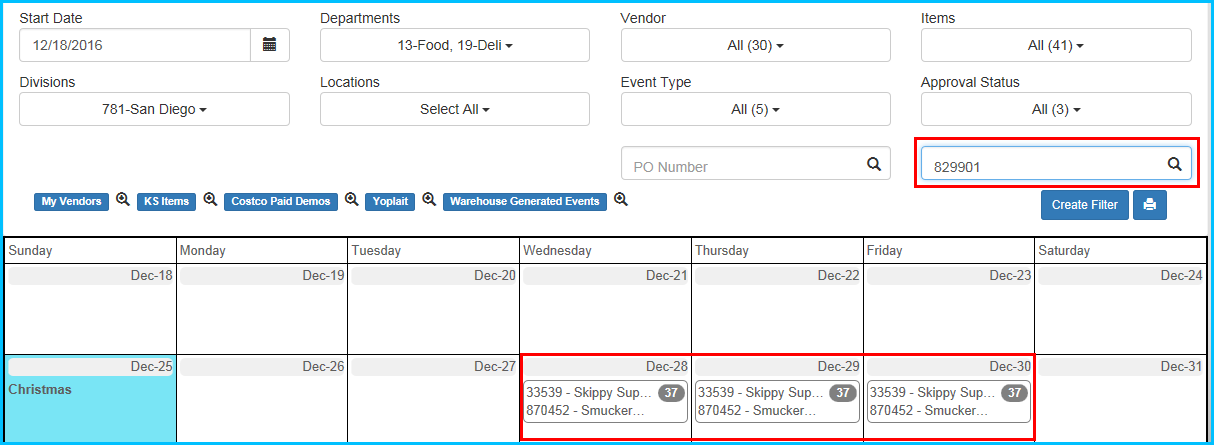
When you open up Today’s Events by clicking on a Date in the Calendar, Event Requests will sometimes be missing some information depending on where they are in the Approval Process. For example, when a Buyer submits an Event, the Billable Vendor does not get assigned until the Daymon Sales & Scheduling Team reviews and processes the Request. This is also when the DPIS would be assigned. This means that until the Event Request has been processed, this data will be missing.
Calendar – Mixed Approval Statuses
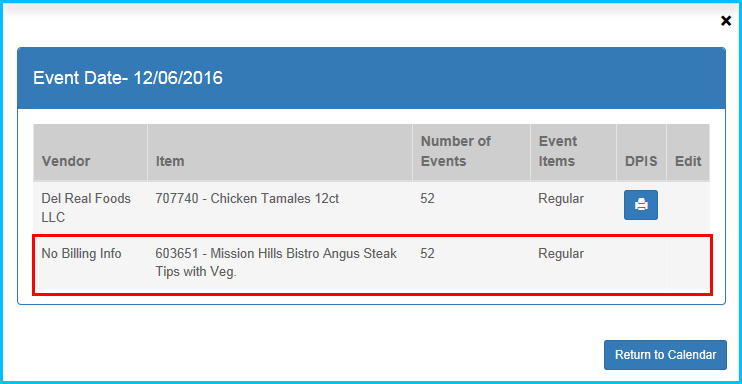
On some occasions, and Event Request may have Events that are in multiple Approval Statuses. Some may be Approved, some may be Waiting Approval, and some may Need More Information. This can happen for a number of reasons. For example, you may add Dates/Locations to an existing Request that has already been approved. The Events that had already been Approved would remain Approved, but the newly added Events would be in Waiting Approval. In the Calendar, it is difficult to show 2 Approval Statuses at the same time. What we have done to indicate when a group of Events have mixed Approval Statuses, we have added a gold ring around the Event Count in the Calendar. The Color of the Event Count will be dictated by the highest Approval Status in the group of Events. For example, If I had a set of Regular Events where there was 1 Approved Event and 1 Waiting Approval Event, the Event Count would be 2 and the Color would Blue with Gold ring around it. In the same scenario, if 1 Event was Waiting Approval and 1 Event was Needs More Information, the Event Count would still be 2, but the Color would be Gray with a Gold ring around it. The most important thing to understand is that if your Events have more than 1 Approval Status, you will see the Gold ring and you should open the Event Details to see all of the Events and their Approval Statuses.
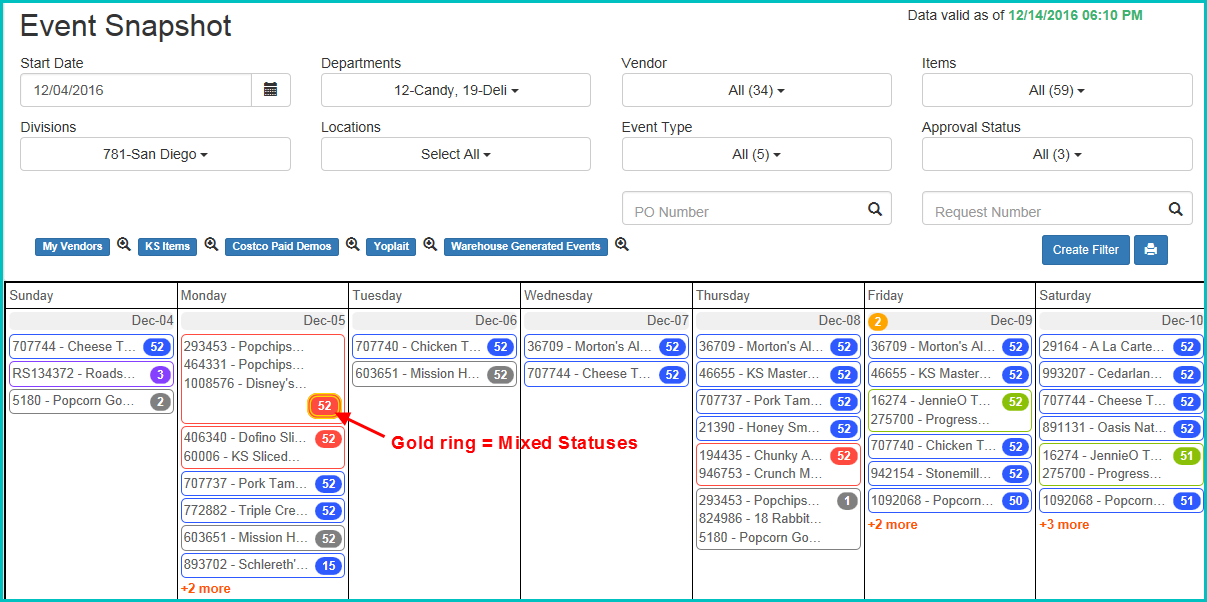
Calendar – View Event Details
To see the Details about a group of Events with Mixed Statuses, click on the Event in the Calendar to open the Event Details popup. In addition to the Execution Statuses, we have added a section for the Approval Statuses on the first tab. If you have Mixed Statuses, the Event Count for each status will show in Approval Status section.